A 100% Debian Linux, free, privacy focused, open-source operating system targeting x86-x64 touch devices, designed to liberate users from any kind of Google or third party surveilance, data collection and security concerns. This fork only uses official Debian sources, meaning no third party repositories, packages or code of any kind, while granting users complete control over every single package that is installed. The native implementation of custom kernels with the included build recipes enables support for almost any brand/model of x86-x64 tablet or lap-top, such as Surface Pro 3-10, Zenbook, Thinkpad, Chromebook etc. and a range of ARM phones. Additionally, custom or deb packages and files of any kind can also be included. The mobian build-script produces personalized images, with unlimited customization of any available setting and device behavior.

- Preview
- Features
- Installation
- Building
- Build Preparation
- Custom Apps
- System Settings
- Credits
- Donations
- Preview
-
Mobian uses a phosh environment by default which if so desired can be replaced with a simple change in the base package list. For example, other comparable mobile environments are Lomiri and Plasma Mobile.


-
The spotify-client .deb package can be installed directly or during building by placing it in
mobian/overlays/packages/deb.

-
At the time of writing Debian does not yet offer a Netflix package. Webapp-manager appears to be the most conveniant solution. Both previews are displaying the webapp versions of Netflix and Spotify. See 🔼 Webapp Manager


- Features
- 100% Debian FOSS
- 100% Official Debian Sources
- No 3rd party Mobian repositories or packages
- Adding support for custom kernels & many x86-x64 touch devices (Surface Pro, Zenbook, Yoga etc.)
- Major amd64 UI & Bug fixes
- Adding Phosh defaults like OSK, Intel Chipset Support etc.
- Fixed amd64 installer & added Live/Minimal calamares version
- Enabling inclusion of .deb and ordinary files into image filesystem
- Github CI
- Support for all Debian releases - bookworm,trixie,forky,sid
- Updated build script & recipes
- Customizable package lists & default settings
- Code refactoring
- Installation
By using option -o during building, you can produce a Mobian installer image that contains a basic Phosh environemnt and calamares to install the filesystem.
This repo features two branches, which produce different installer images.
-
master
- Full Phosh Live Environment, allowing users to test their device before starting the installation
- Custom kernels are also installed on the live system, so touch sensitivity and other hardware can be checked
- Essential firmware and wifi drivers enabling internet access in case additional packages are needed for testing
Note: Live installer images come with a Calamares shortcut that starts the installation.

-
mobian-light
- Designed to be lightweight
- Installer-Only, no desktop environment
- Includes essential firmware, limited locales/language support, minimal base & phosh package lists
Note: Build option
-Kglobally enables automatic on-screen-keyboard for devices w/o a physical keyboard. -
Download or build your installer image. Extract it, if compression was chosen.
unxz -kv mobian-<release>.img.xz
-
The following command will create a bootable USB Stick.
dd if=mobian-<release>.img of=/dev/sdX bs=4096K status=progress
-
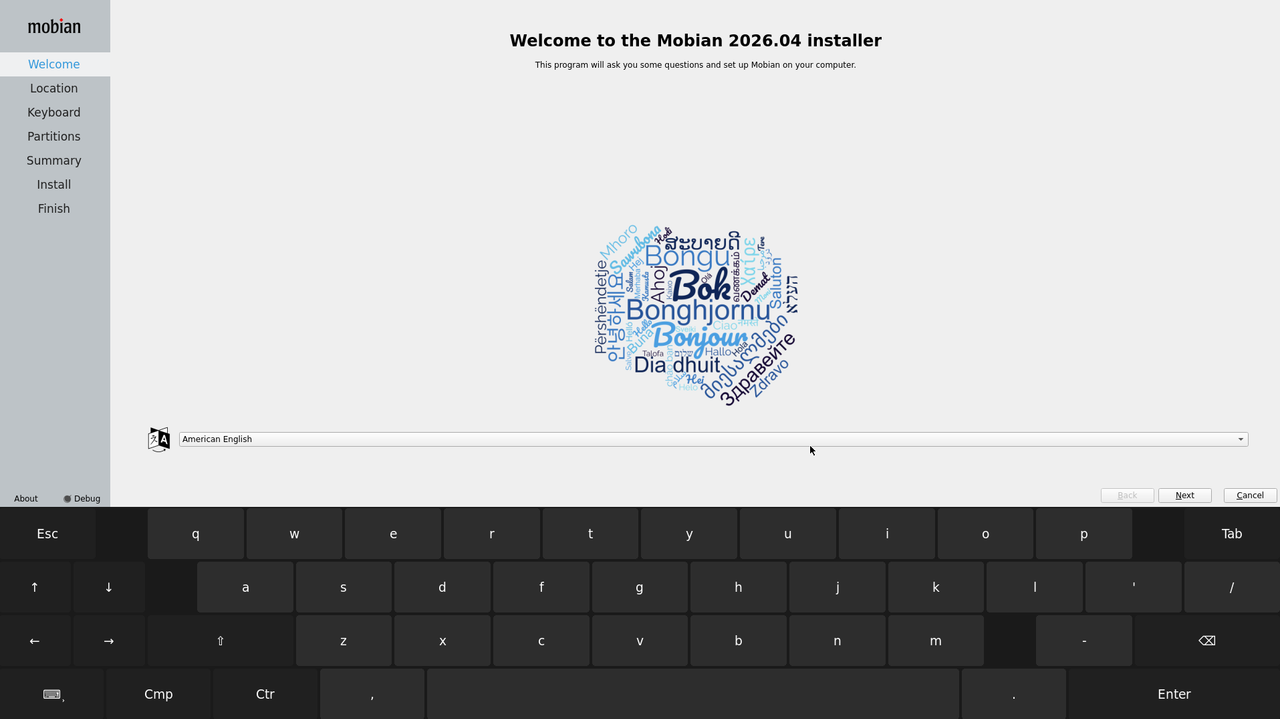
Launch the installer and complete all steps.




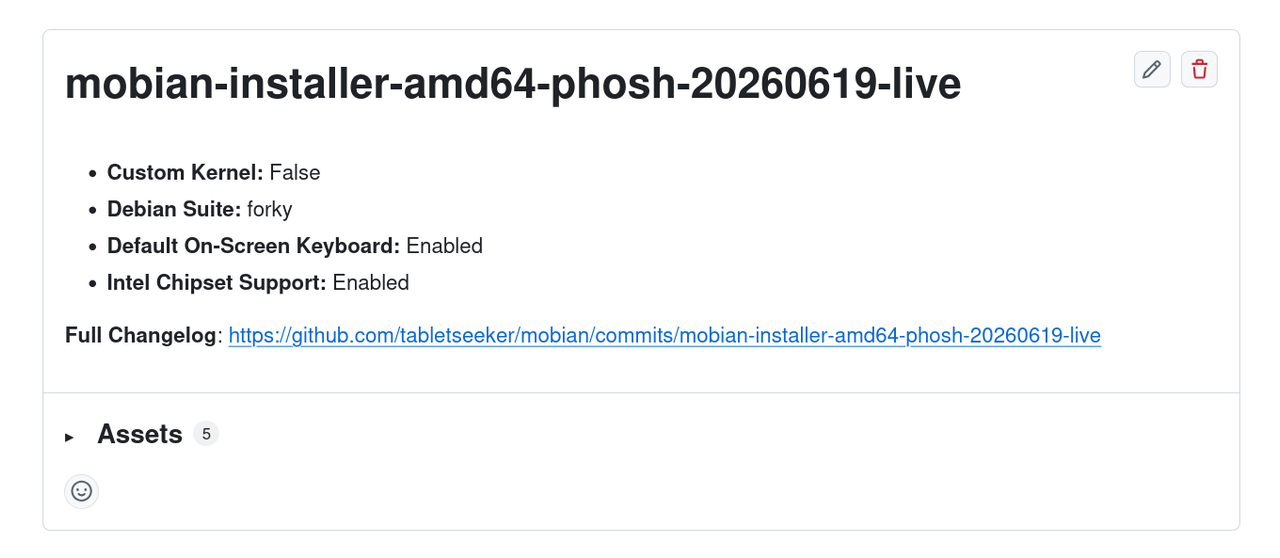
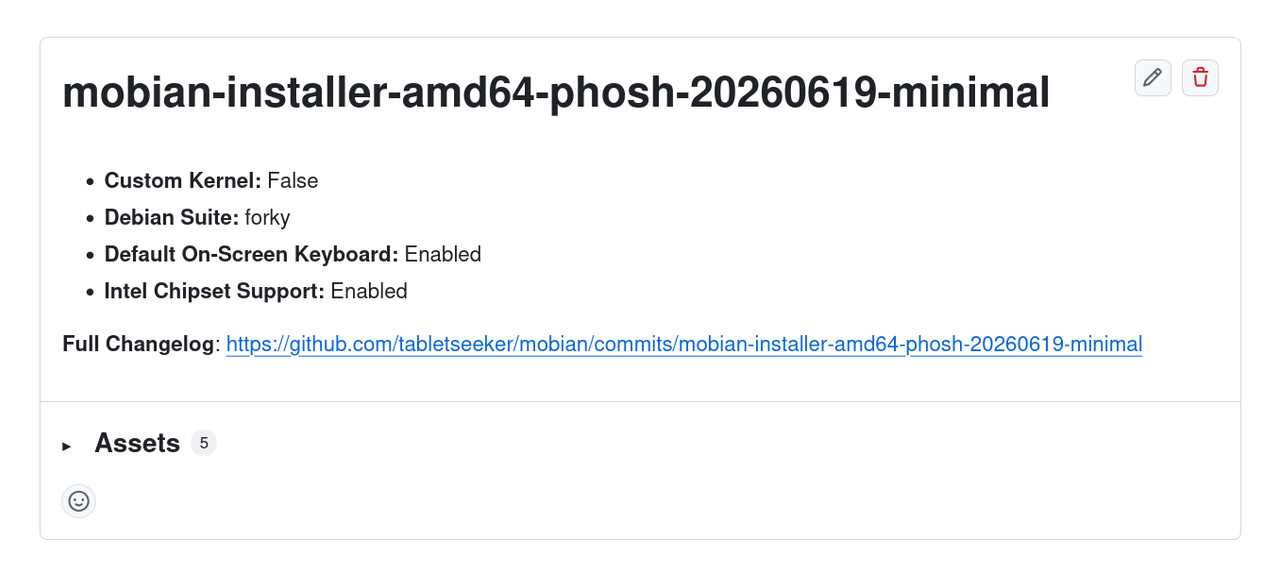
Multiple installer images can be found on the Github Release page. The postfix -live represents master and -minimal lightweight branch builds.
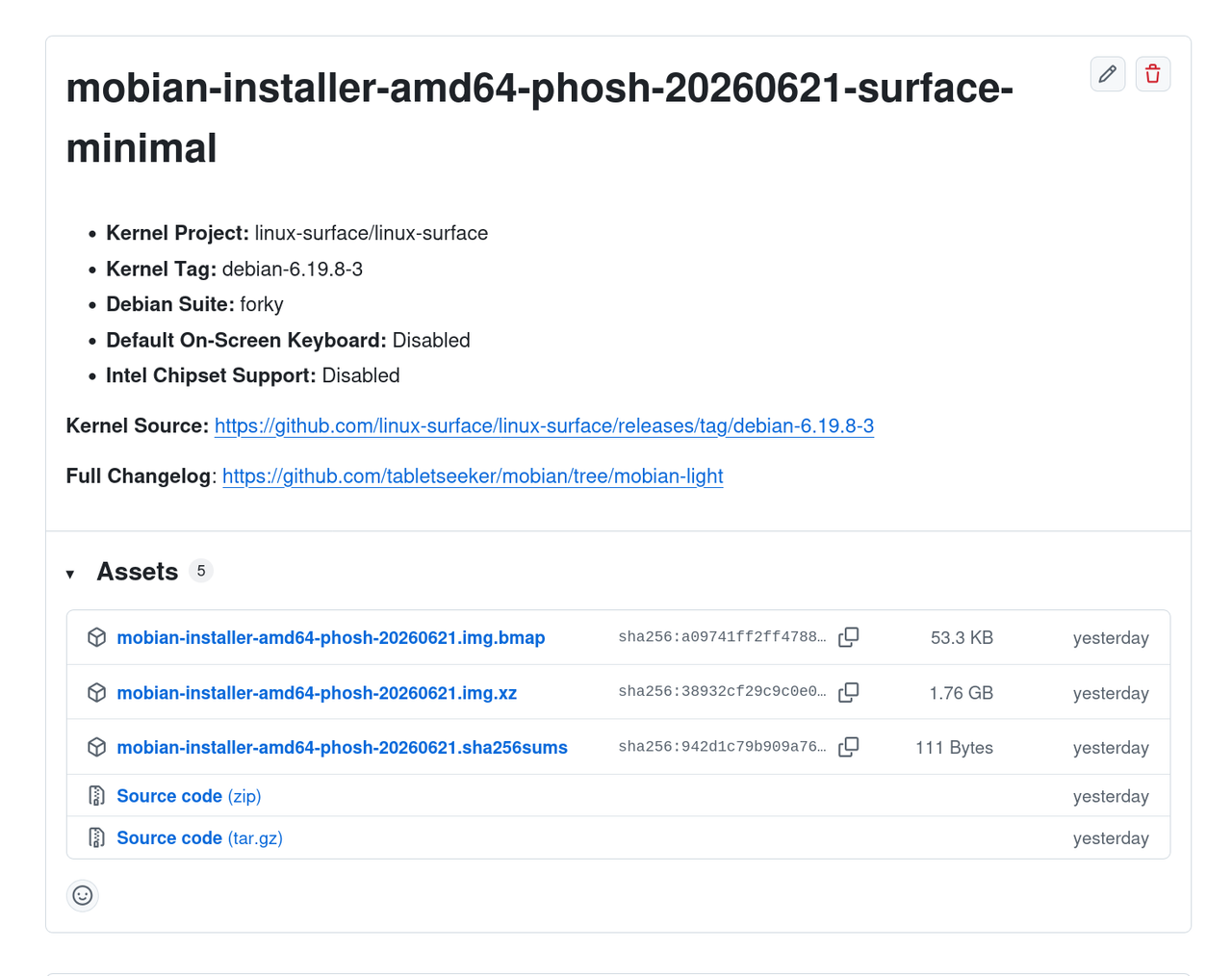
Images featuring a custom kernel for specific devices carry an additional identifier. In the following example, the linux-surface kernel for Surface Pro devices has been included.
You can also run images locally using qemu and even install it to a .qcow2 disk.
-
Create .qcow2 file if you intend to install the image locally.
qemu-img create -f qcow2 target_disk.qcow2 20G -
Change directory into your build folder.
cd mobian -
Run the installer image with Qemu.
qemu-system-x86_64 -drive format=raw,file=$(find . -type f -name "*.img" | tail -1) -enable-kvm -cpu host -device VGA,xres=1600,yres=1000 -global VGA.vgamem_mb=64 -m 2048 -smp cores=4 -drive if=pflash,format=raw,readonly=on,file=/usr/share/OVMF/OVMF_CODE_4M.fd -drive file=target_disk.qcow2,format=qcow2,if=virtio -
After installing Mobian to the disk, you can run it like so.
qemu-system-x86_64 -enable-kvm -cpu host -device VGA,xres=1600,yres=1000 -global VGA.vgamem_mb=64 -m 2048 -smp cores=4 -drive if=pflash,format=raw,readonly=on,file=/usr/share/OVMF/OVMF_CODE_4M.fd -drive file=target_disk.qcow2,format=qcow2,if=virtio
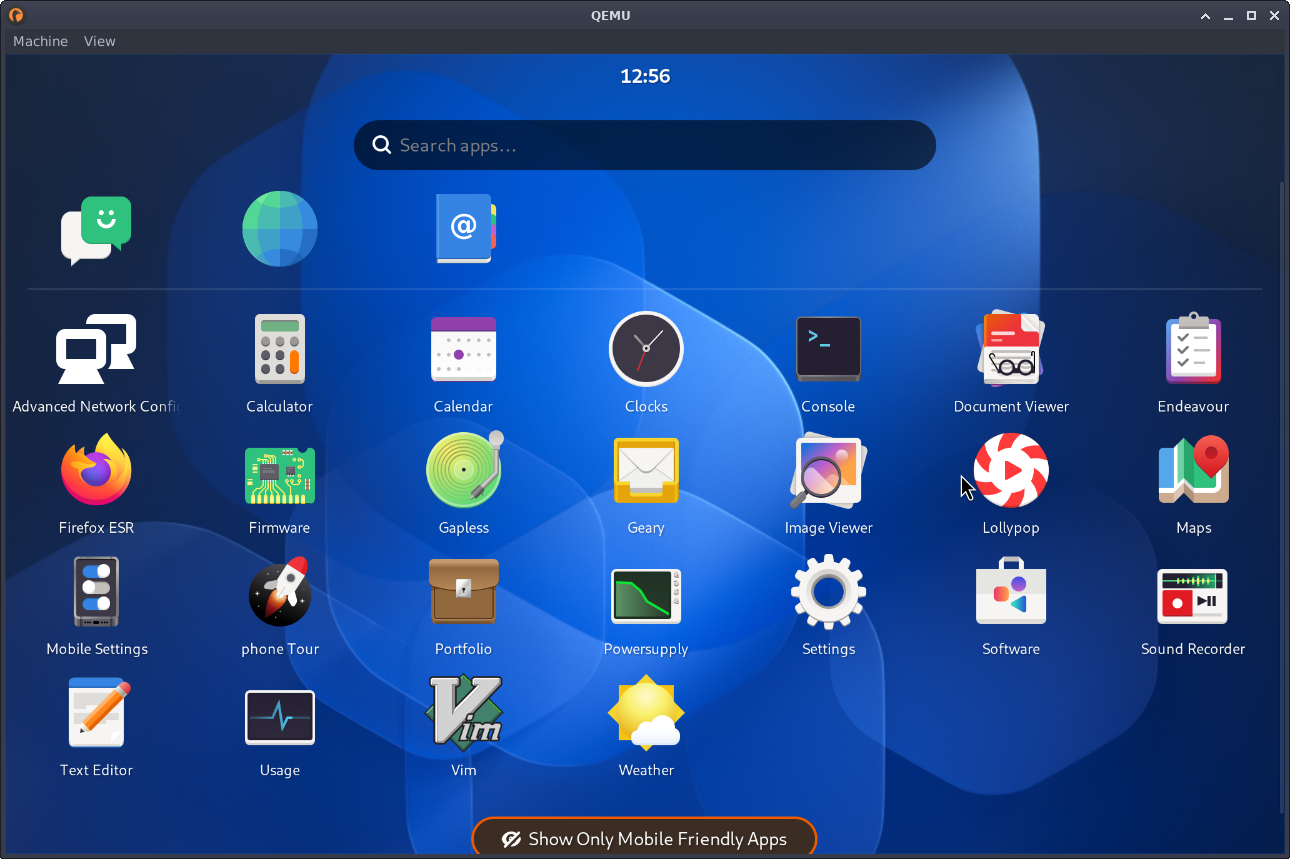
Regular Mobian images come with the default kernel package linux-image-amd64 and don't have any additional options, title pre- or postfixes.
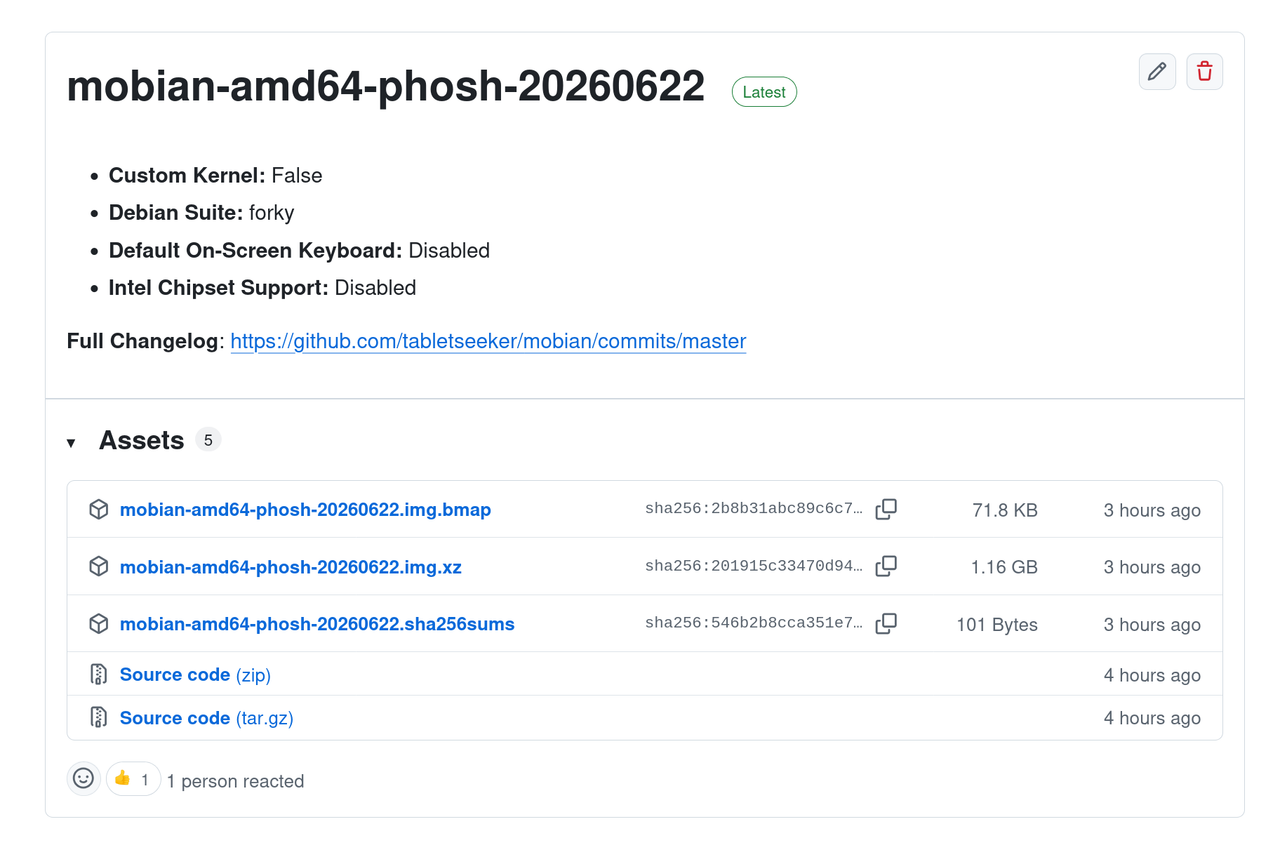
You can directly write a regular Mobian image to any device by using bmaptool.
sudo bmaptool copy <image> /dev/sdX
It can also be run with Qemu using the following command.
qemu-system-x86_64 -drive format=raw,file=$(find . -type f -name "*.img" | tail -1) -enable-kvm -cpu host -device VGA,xres=1600,yres=1000 -global VGA.vgamem_mb=64 -m 2048 -smp cores=4 -drive if=pflash,format=raw,readonly=on,file=/usr/share/OVMF/OVMF_CODE_4M.fd
-
Insert a MicroSD card into your computer, and type the following command:
sudo bmaptool copy <image> /dev/<sdcard> -
You can also use
ddto accomplish the same result.sudo dd if=<image> of=/dev/<sdcard> bs=1M
- Install dependencies
- Clone repository
-
Debian Host
sudo apt-get install -y debos bmap-tools f2fs-tools squashfs-tools-ng xz-utils -
Non-Debian Host
- If your host system is not debian based, make sure to install the following packages.
debootstrap qemu-system-x86 qemu-user-static binfmt-support squashfs-tools-ng -
Building for Qualcom devices requires additional dependencies
sudo apt install android-sdk-libsparse-utils yq mkbootimg -
Building with encryption requires the package
cryptsetup -
Clone repo
git clone --depth=1 --branch=master https://github.com/tabletseeker/mobian
- How it works
The build script /mobian/build.sh processes and passes on build arguments to debos which installs a debian minbase using debootstrap, sets up packages, partitions, bootloader etc. and ultimately creates the image according to the included debos recipes. More information about debos can be found at the official debos github repistory.
https://github.com/go-debos/debos
- Target Devices
- X86-X64 Laptops and All in One Devices: Surface Pro 3-10, Zenbook, Thinkpad, Chromebook, XPS, Lenovo Yoga etc.
amd64(includes non-free sources to install firmware)amd64-free
- Phones & Tablets
-
pinephone|pinetab|sunxi -
pinephonepro|pinetab2|rockchip -
librem5 -
sdm845|sdm670|sm6350|sc7280|qcom-wip
- Parameters
- These arguments do not accept values.
| Option | Description | Variable |
|---|---|---|
-k |
Install custom kernel | kernel |
-c |
Use encryption | crypt_root |
-d |
Use docker to run debos | use_docker |
-D |
Enable debugging mode | debug |
-v |
Enable verbose output | verbose |
-i |
Only build the image | image_only |
-z |
Enable compression | do_compress |
-b |
Do not use bmaptool create | no_blockmap |
-s |
Install openssh-server | ssh |
-o |
Create installer image | installer |
-Z |
Setup zram devices | zram |
-C |
Inlclude contrib repository | contrib |
-r |
Install miniramfs | miniramfs |
-K |
Enable On-Screen-Keyboard | keyboard |
-L |
Loads Kern Modules for Intel | intel_chipset |
- Option
-Kenables the On-Screen-Keyboard by default, which can be useful for devices that exclusively rely on touch input or want the OSK to emerge when no mechanical keyboard input is attached. - Option
-Lfixes a conflict with thesoc_button_arrayandpinctrl_inteldriver which can cause mechanical buttons like Volume Control +/- and the Power Button to stop working on Intel Chipsets.
- User defined values are accepted.
| Option | Description | Variable | Sample Value |
|---|---|---|---|
-R |
Encryption password | crypt_password | lombax |
-e |
Name of include/${environment}.yaml |
environment | phosh |
-H |
Set the hostname | hostname | mobian |
-f |
Set debos env ftp_proxy | ftp_proxy | 127.0.0.1:45 |
-h |
Set debos env http_proxy | http_proxy | 127.0.0.2:53 |
-g |
Signee user id | sign | jeffrey |
-M |
Debootstrap mirror | mirror | https://deb.debian.org/debian |
-m |
Debos memory value | memory | 16GB |
-p |
4 digit system password | password | 1234 |
-t |
Target device | device | amd64 |
-u |
System username | username | jeffrey |
-F |
Image partition fs | filesystem | ext4 |
-x |
Debian suite | debian_suite | forky |
-S |
Suite | suite | forky |
-Q |
Scratchdisk Size | scratchsize | 8G |
-T |
Installer Image Size | installersize | 10GB |
-I |
Image Size | imagesize | 15GB |
| Variable | Default Value |
|---|---|
device |
pinephone |
username |
mobian |
password |
1234 |
image |
image |
partitiontable |
gpt |
filesystem |
ext4 |
environment |
phosh |
arch |
arm64 |
debian_suite |
trixie |
stable i.e. trixie is the default distribution that will be built, if option -x is not invoked.
To build a testing image based on forky, use -x forky , or -x bookworm for bookworm.
sid can also be built, but beware of stability and realibility issues.
- Custom Kernel
-
Some devices without mainline support require custom kernels in order to enable things like touch sensitivity, cameras and other similar hardware related functionalities.
-
There are many resources such as community kernel projects allowing users to simply download pre-built kernels or providing patch tutorials and compilation guides.
- Surface Pro 3-10: https://github.com/linux-surface/linux-surface/releases
- Lenovo: https://gist.github.com/jbuncle/7dacde983b3c33b3b816b10e2fd2308a
- HP Chromebook: https://github.com/1000001101000/HP_Chromebook_15
- XPS 13: https://github.com/endeavour/DellXps7390-2in1-Manjaro-Linux-Fixes
- HP Spectre: https://github.com/aigilea/hp_spectre_x360_14_eu0xxx
- Samsung Galaxy Book: https://github.com/joshuagrisham/samsung-galaxybook-extras
-
Add your kernel files, which must be .deb packages
linux-image-{version}.debandlinux-headers-{version}.debtomobian/kernel -
Use option
-kwhen running the build script in order to trigger the installation of your kernel packages.
- Custom Packages
-
.debpackages can be added tomobian/overlays/packages/deband will be automatically installed without the need for any additional build arguments. -
Pre-built packages can be added in-tree form to
mobian/overlays/packages/amd64,mobian/overlays/packages/phoneandmobian/overlays/packages/sunxi(pinephone). For example, a pre-built package could be included by addingusr/lib/<package_libs>andusr/bin/<package_binary>. -
Files of any kind can also be added to the locations mentioned above. For example a custom wallpaper can be added by including the following tree.
mobian/overlays/packages/amd64/usr/share/backgrounds/mobian/wallpaper.jpg
- Sample Commands
-
Building against device amd64-free (non-free packages excluded) with default values
./build.sh -t amd64-free
-
Building against device amd64 with a custom kernel
./build.sh -t amd64 -k
-
Building against device amd64 with a custom kernel, installer and default On-Screen-Keyboard enabled (tablets or no physical keyboard)
./build.sh -t amd64 -k -o -K
-
Building against device amd64 with a custom kernel, installer, default On-Screen-Keyboard enabled and loading drivers for Intel Chipsets.
./build.sh -t amd64 -k -v -z -o -K -L -x forky
-
Building against device amd64 with img compression, custom kernel, verbose output, debian trixie suite and a specific user and password
./build.sh -t amd64 -z -v -k -u "jeffrey" -p "9999" -x "bookworm"
-
Building against device pinephone with default values
./build.sh -t pinephone
-
Building against device librem5 with img compression and encryption
./build.sh -t librem5 -z -c -R "lombax"
- Build Preparation
-
The build system will cache and re-use it's output files. To create a fresh build remove *.tar.gz, *.sqfs and *.img before starting the build. For testing or repetitive builds use
cache:truewith debootstrap and package install actions. -
Running
./build.sh -druns the build i.e debos inside a docker container, thus installing debos would not be required in this case. -
amd64produces x86_64 raw images which can be run/tested with QEMU using the following command.qemu-system-x86_64 -drive format=raw,file=<imagefile.img> -enable-kvm \ -cpu host -vga std -m 2048 -smp cores=4 \ -drive if=pflash,format=raw,readonly=on,file=/usr/share/OVMF/OVMF_CODE_4M.fdUsing SSH to access the QEMU image, in order to collect logs directly from the host system, can be achieved with the following command.
qemu-system-x86_64 -drive format=raw,file=<imagefile.img> -enable-kvm \ -cpu host -vga std -m 2048 -smp cores=4 \ -drive if=pflash,format=raw,readonly=on,file=/usr/share/OVMF/OVMF_CODE_4M.fd \ -nic user,hostfwd=tcp::8888-:22This forwards port 8888 on the host to port 22 on the guest system. Then connect the host to the guest like so.
ssh mobian@localhost -p 8888 sftp -P 8888 mobian@localhost -
To create a VM based on the mobian x86_64 image, launch virt-manager, click New VM -> Import existing disk image -> select the raw image and OS version then progress to the Ready to begin installation page, check customize configuration before install then click finish.
Under Hypervisor Details, change firmware to
UEFI x86_64: /usr/share/OVMF/OVMF_CODE_4M.fdthen apply and begin installation, the image should now boot up.Use
qemu-imgto resize and convert the raw image as needed.qemu-img convert -f raw -O qcow2 <raw_image.img> <qcow_image.qcow2> qemu-img resize -f qcow2 <qcow_image.qcow2> +20G
- Custom Apps
-
Download the webapp-manager .deb package from any mirror of your choice. Example: https://mirrors.edge.kernel.org/linuxmint-packages/pool/main/w/webapp-manager/
- The commands below will download the latest version from the Linux Mint Archives.
MIRROR="https://mirrors.edge.kernel.org/linuxmint-packages/pool/main/w/webapp-manager/"
DEB="$(curl -s "${MIRROR}" | grep -Po "webapp-manager[_.-a-z0-9]+_all.deb" | tail -1)"
curl -s "${MIRROR}${DEB}" -o "${DEB}"
-
Install the webapp-manager .deb package.
sudo dpkg --install -- webapp-manager*_all.deb || sudo apt install -fy
-
(Optional) Build with the webapp-manager .deb package included. Add the
webapp-manager*_all.debfile tomobian/overlays/packages/deb/before running the build script. -
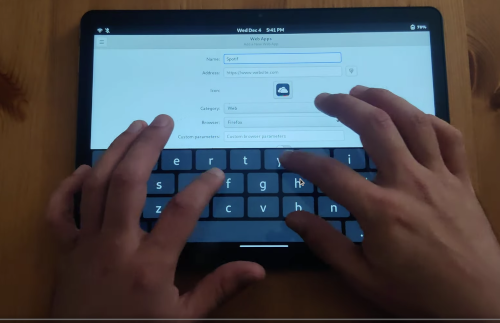
Follow the instructions in this Youtube Tutorial which explains how to create local apps with webapp-manager.
-
Note that webapp-manager does not need to be installed separately.
-
- System Settings
-
The system natively uses an On-Screen-Keyboard during touch operation and automatically switches to Mouse and Keyboard once detected.

-
Mobian is designed to be 100% Google free, however it is still possible to connect accounts should users absolutely require this functionality. (Don't)

-
Multiple backgrounds come pre-installed. Custom background images can be overlayed during building.

-
Dark Mode and various color schemes are available out of the box.

-
Workspace management and multi-tasking features can also be leveraged.


-
Devices like the Surface Pro 8,9,10 with higher refresh rates will be adjustable in the display menu.

-
Wireguard VPN connections are extremely power efficient on mobile devices thanks to mainline support.


Big thanks to the developers @mobian-team.
The original project can be found here:
https://salsa.debian.org/Mobian-team/mobian-recipes
All major feature requests are implemented and this project will be maintained for most devices. Any support is appreciated.
Bitcoin Address: bc1qxaf820c6zynvlqv62xkyucd654e8j2xqxc4nmw